How to use Moonlite Labs in Claude and ChatGPT with MCP
Turn your creative briefs, scripts and brand guidelines into images, videos and audio with simple instructions. Let Claude or ChatGPT handle model selection and multiple generations through Moonlite Labs.
You can use Claude or ChatGPT to brainstorm campaign ideas, develop storyboards, write scripts and plan creative projects. But turning those ideas into finished assets often means switching between applications, copying prompts and uploading references again.
With the Moonlite Labs MCP connector, you can move from planning to production within the same conversation.
Share your creative brief, brand guidelines or film script, and describe what you want to create in plain language. Your AI assistant can use that context to generate assets through Moonlite Labs, without requiring you to write complex prompts or understand the technical details of different AI models.
You can even generate multiple assets in parallel, making it easier to explore creative directions and scale production.
What is Moonlite Labs MCP?
The Model Context Protocol (MCP) allows AI assistants to connect with external tools and services. Moonlite Labs uses MCP to bring its AI-powered image, video and audio generation tools directly into Claude and ChatGPT.
With the Moonlite Labs MCP connector, your AI assistant can turn conversations into creative assets, using the context you've already shared to guide production.
Here's what you can do:
- Create with context: Share brand guidelines, film scripts, creative briefs or reference images. Your assistant uses this information to generate assets aligned with your creative direction.
- Skip complex prompts and settings: Describe what you want in plain language. Your assistant identifies suitable AI models and prepares the generation requests.
- Scale production: Queue multiple images or videos simultaneously, explore variations and develop assets for different shots, formats or campaigns.
- Stay in control of costs: Request credit quotes before generating and check your available Moonlite Labs balance directly from the conversation.
- Keep everything organized: Find your generated assets in your Moonlite Labs library, where you can organize, reuse and build on them.
From one product photo to a campaign
Here's an example of what you can create with the Moonlite Labs MCP connector.
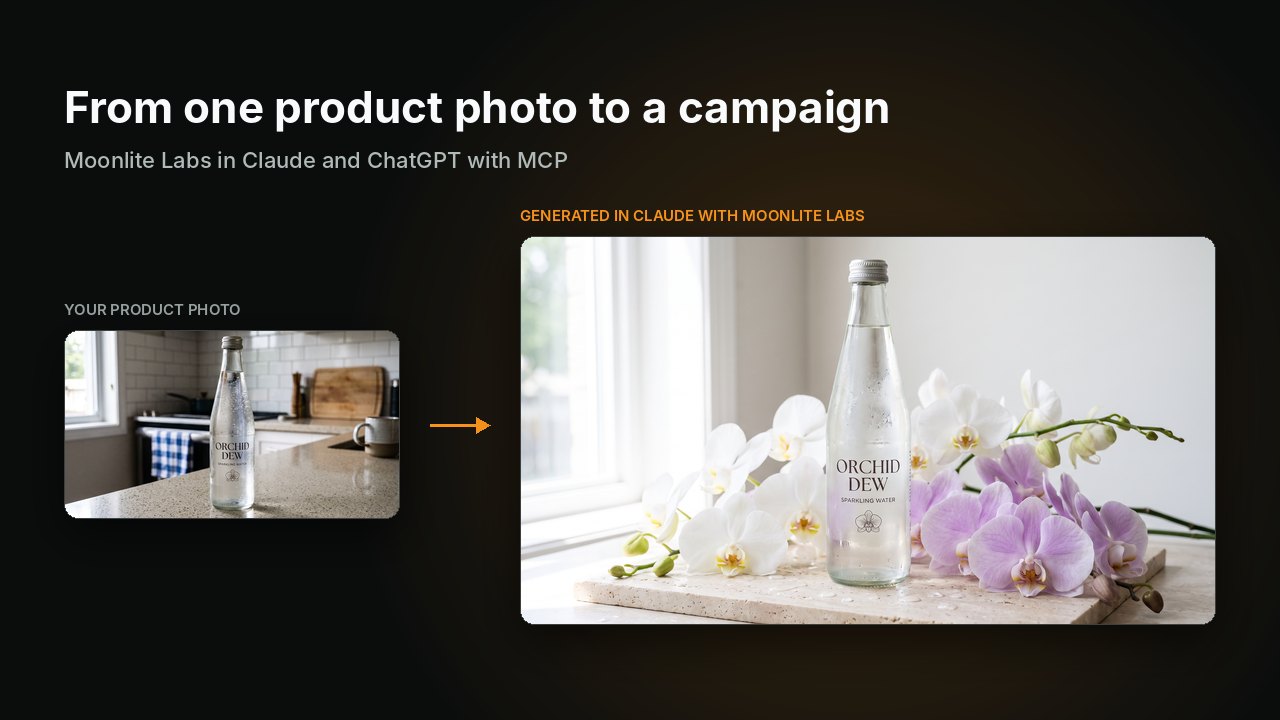
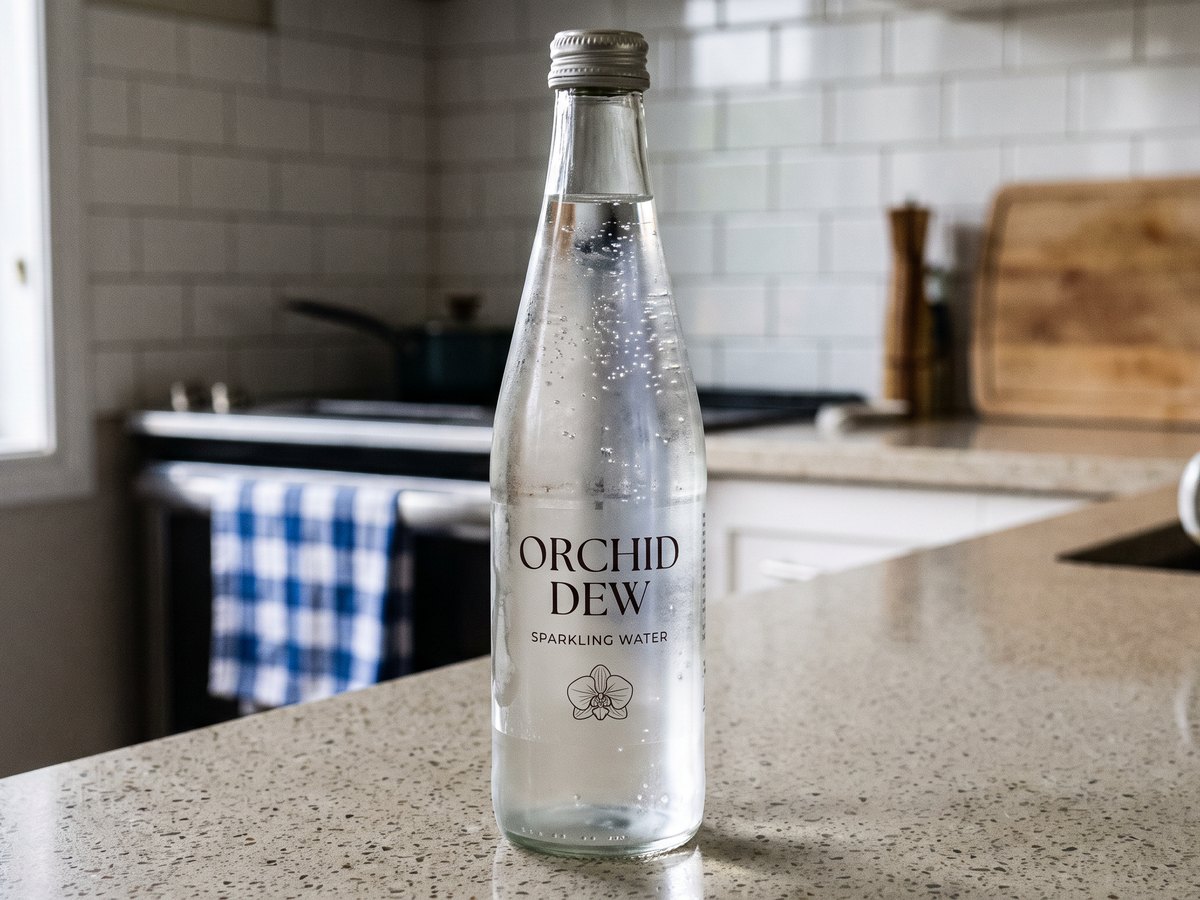
We started with a photograph of an Orchid Dew sparkling water bottle on a kitchen counter and asked Claude to create premium product photography and a 12-second commercial.

Using the Moonlite Labs connector, Claude explored the available image models and selected Nano Banana Pro to generate the product images.
The original photograph served as a reference, helping maintain the bottle's shape, label and packaging while exploring different compositions.
Claude generated a series of product shots, including a dramatic studio image and a brighter composition featuring orchids and natural light.
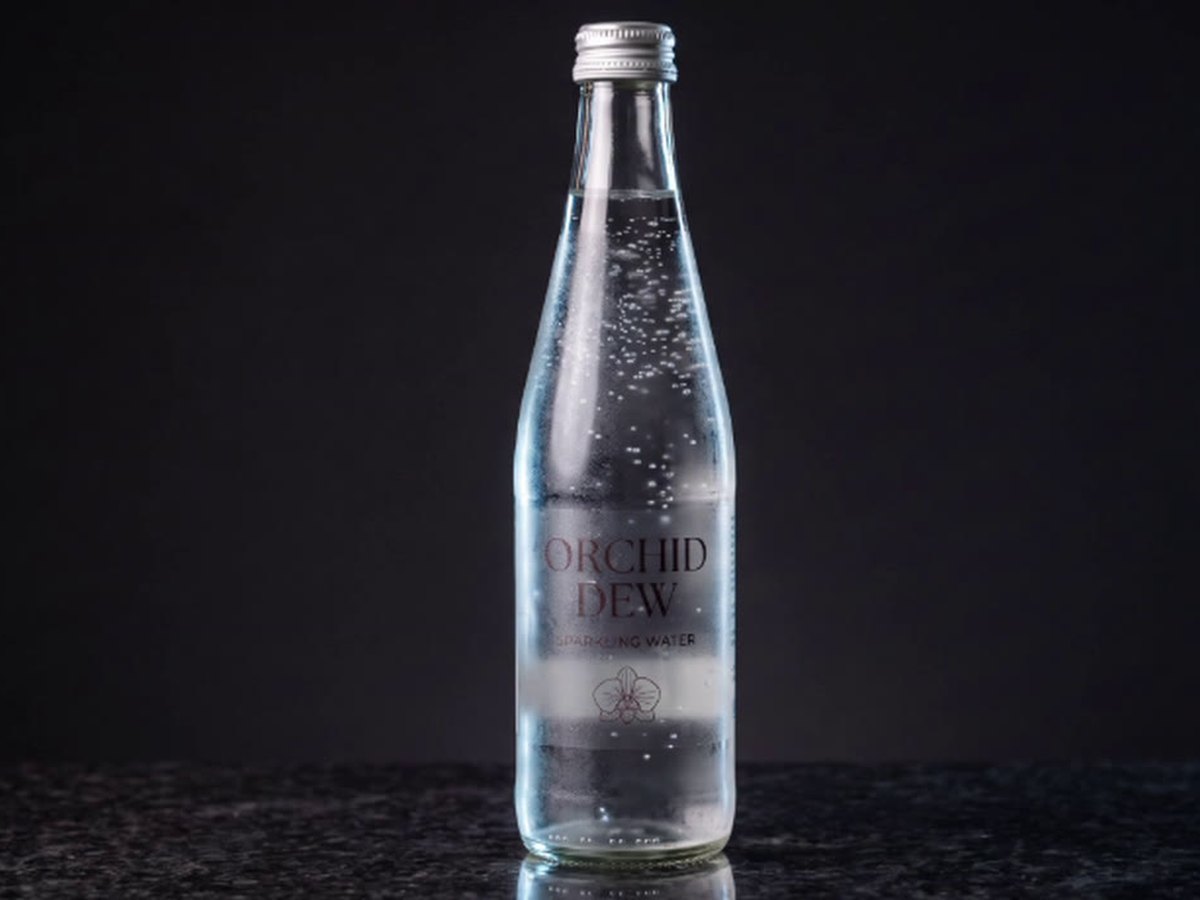
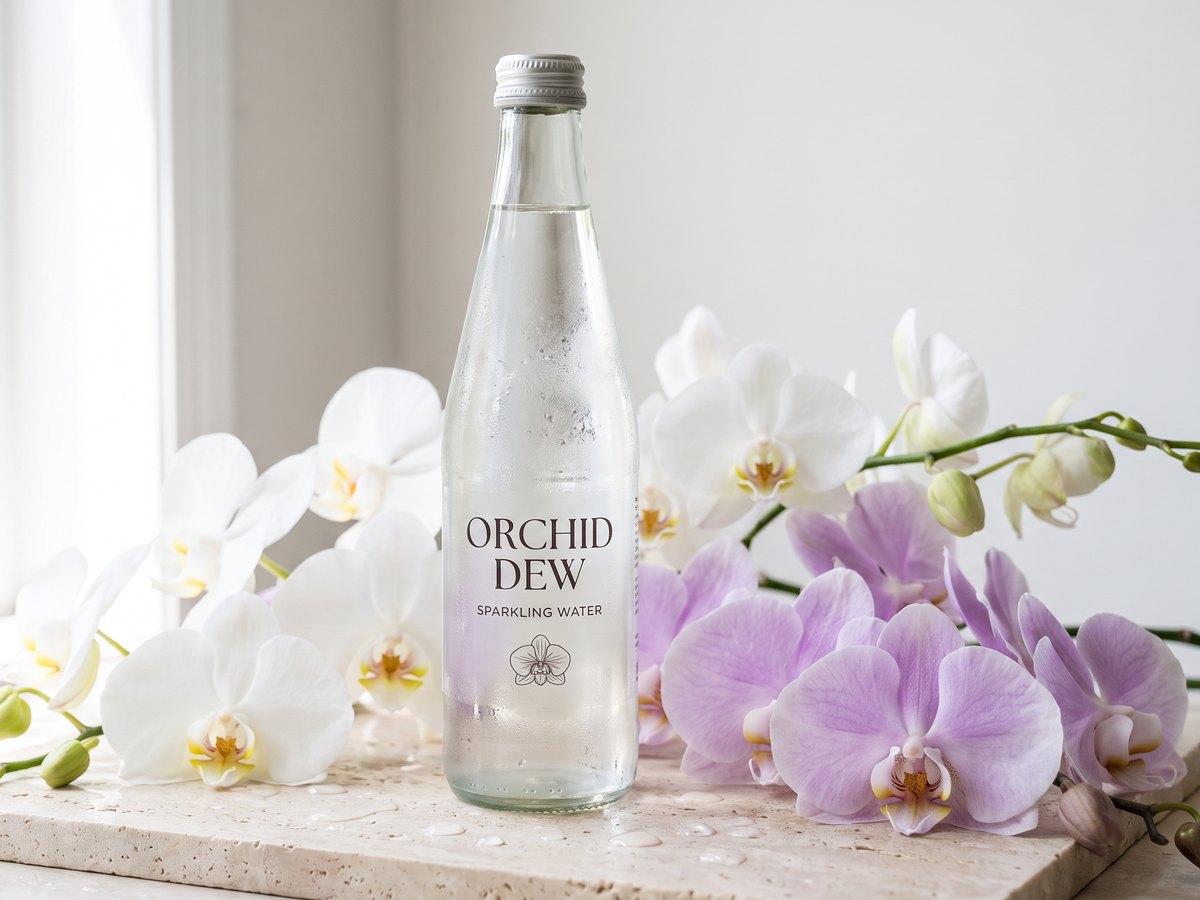
The same conversation then moved into video production. Claude developed a shot list and used Moonlite Labs to generate a 12-second Orchid Dew commercial.
From a single product photograph to a finished commercial, the creative direction and production stayed within one conversation. Each generated asset was also saved to the Moonlite Labs library for future use.
How to connect Moonlite Labs to Claude or ChatGPT
Getting started takes just a few steps. Moonlite Labs provides setup instructions for both assistants directly within the app.
Step 1: Open the Moonlite Labs MCP setup guide
Sign in to your Moonlite Labs account and select MCP from the account menu.
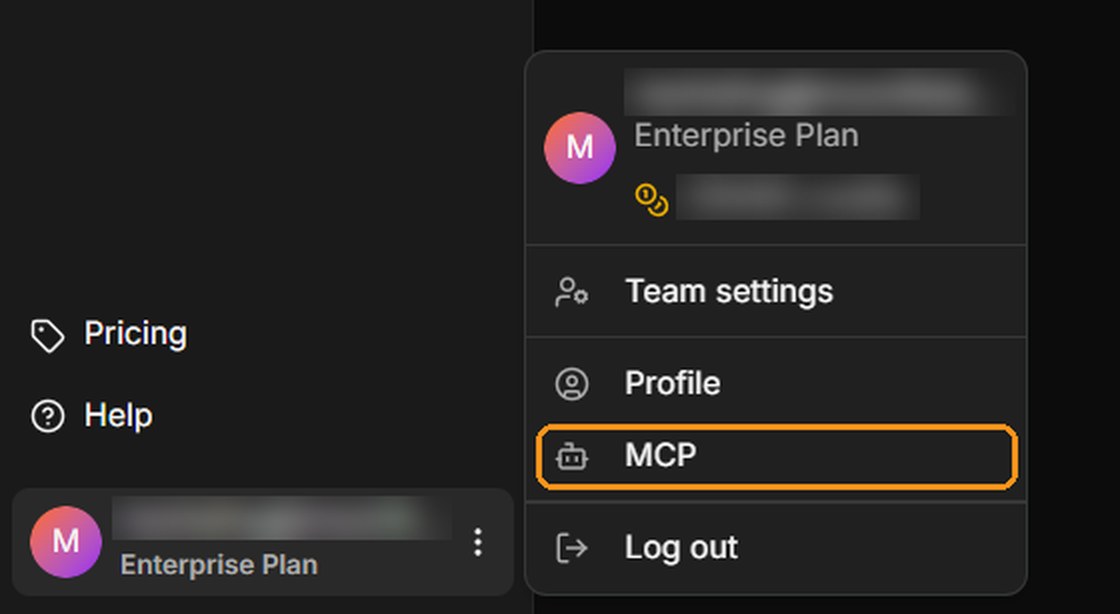
Choose Claude or ChatGPT to view the relevant setup instructions and copy the connector URL:
https://mcp.moonlitelabs.com/mcp
Step 2: Connect your AI assistant
For Claude:
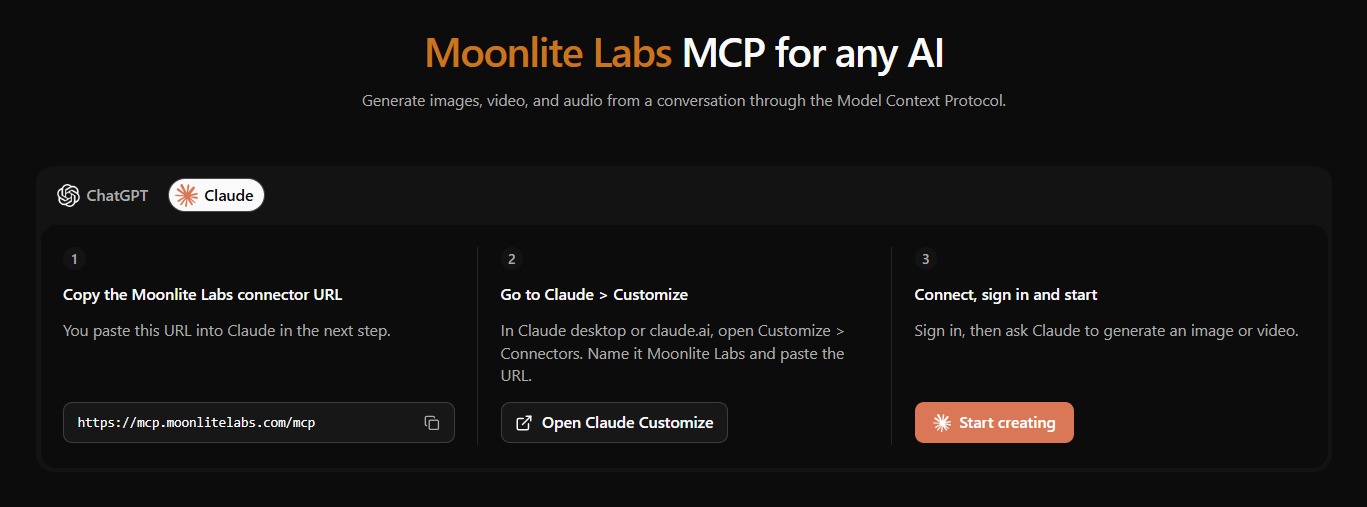
- Open Customize > Connectors in Claude.
- Add a custom connector named Moonlite Labs.
- Paste the connector URL.
- Select Connect next to Moonlite Labs.
- When Moonlite Labs asks for permission, select Approve.
For ChatGPT:
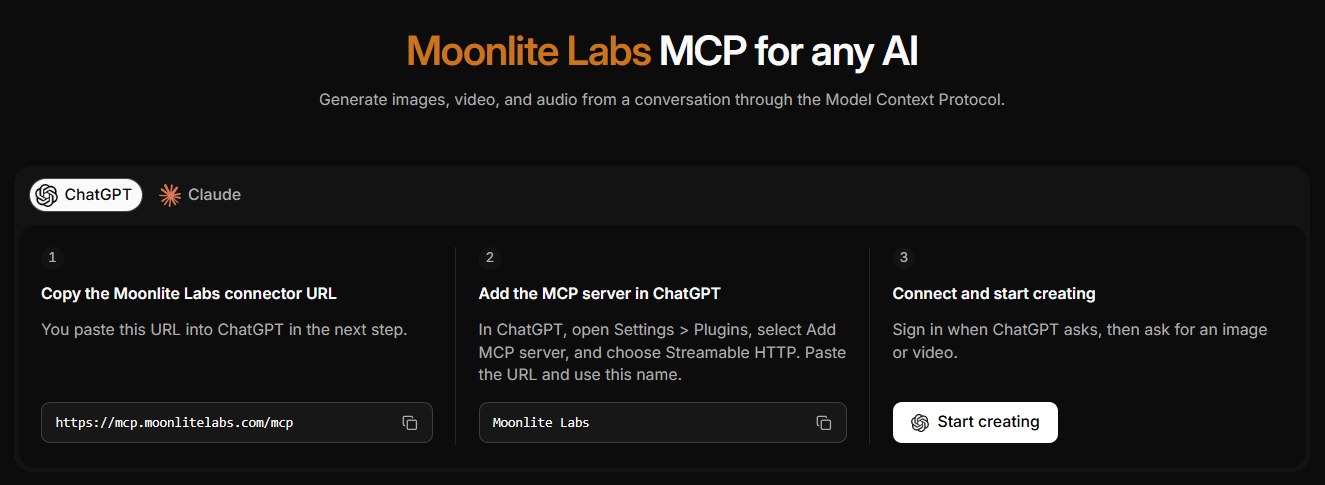
- Open Settings > Plugins in ChatGPT.
- Select Add MCP server and choose Streamable HTTP.
- Enter the connector URL and name the server Moonlite Labs.
Step 3: Sign in and start creating
Sign in to your Moonlite Labs account when prompted to authorize the connection.
Once connected, you can ask Claude or ChatGPT to generate images, videos, music or sound effects using Moonlite Labs.
Note: Custom MCP connections in ChatGPT depend on your account and workspace permissions. Refer to OpenAI's guidance for current requirements.
Example requests to try
You don't need to write detailed technical prompts. Start by describing what you're trying to achieve and let your AI assistant work with the context you've provided.
Create campaign visuals using your brand guidelines
"Using the brand guidelines and campaign brief I've shared, create four product images for our upcoming launch. Keep the visual style consistent, explore different compositions and generate them in parallel."
Generate video clips from a film script
"Based on this film script, create short video clips for the opening three shots. Follow the visual direction we've discussed, recommend suitable AI models and run the generations in parallel."
Create a product commercial
"Using this product photo as a reference, create a 12-second commercial with cinematic lighting and smooth camera movements. Develop the shot list first, then generate the video."
Check your credits before generating
"How many Moonlite Labs credits would it take to generate a 10-second video? Recommend a suitable model and tell me how many credits I have left."
You can continue refining your requests in the same conversation, exploring variations or developing additional assets as your project evolves.
Get started with Moonlite Labs MCP
Whether you're creating a campaign, planning a film or experimenting with visual concepts, Moonlite Labs MCP brings content generation into the conversations where your creative ideas take shape.
Share your context, describe your vision and focus on creative direction while your AI assistant handles the generation workflow through Moonlite Labs.